Installation
Follow fresh installation guideline if you are having problem to install template.
Template Settings
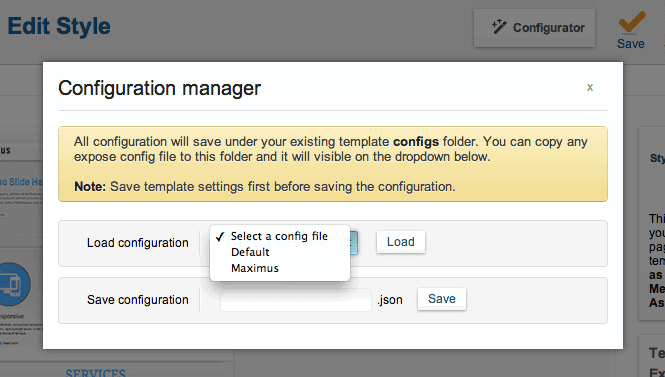
To load factory settings of this template please open template settings and click Configurator button. Under Load configuration button you will see all available settings there and choose settings named as your template name. Then press load button and you're done!
Homepage Settings
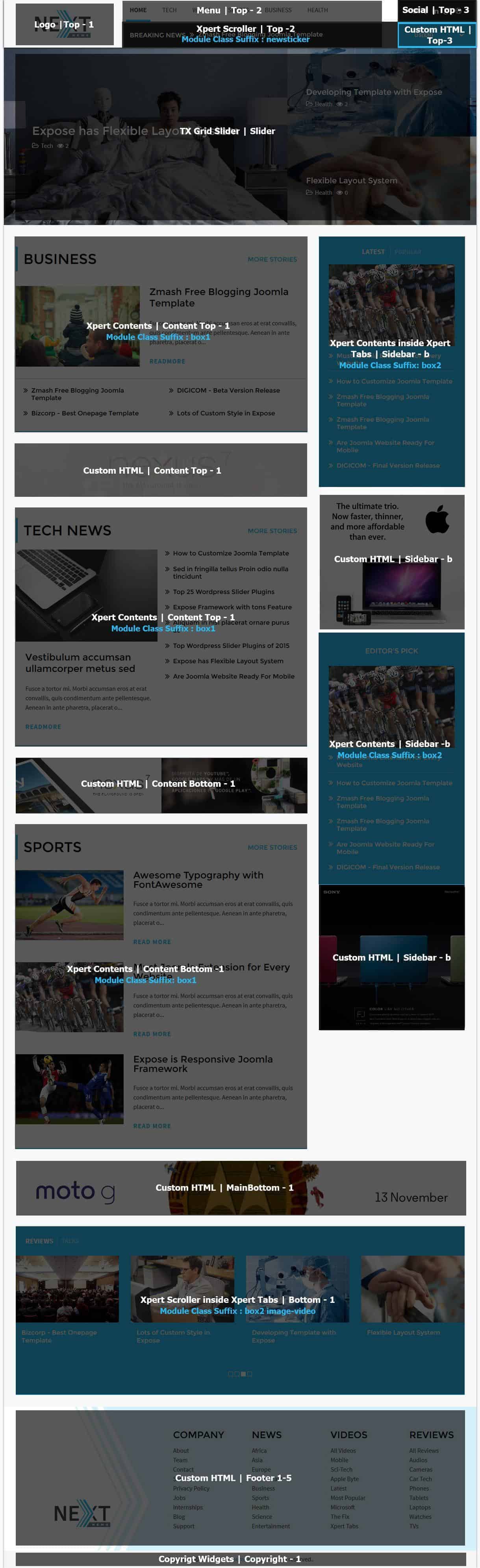
The screenshot below shows you the modules we have published on the homepage of the demo site.
Layout Types
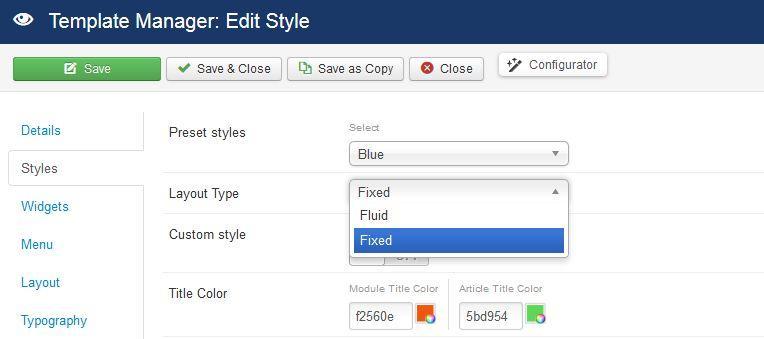
Next News provides two types of layout - Fixed & Fluid. To select the layout type please open template settings, click Styles tab and you'll see Layout Type select box. Choose your layout type and Save.
Slideshow Settings
This slideshow is powered by our brand new TX Grid Slider module and here are the settings.
Module Position: slider
Class Suffix: nomargin hidden-phone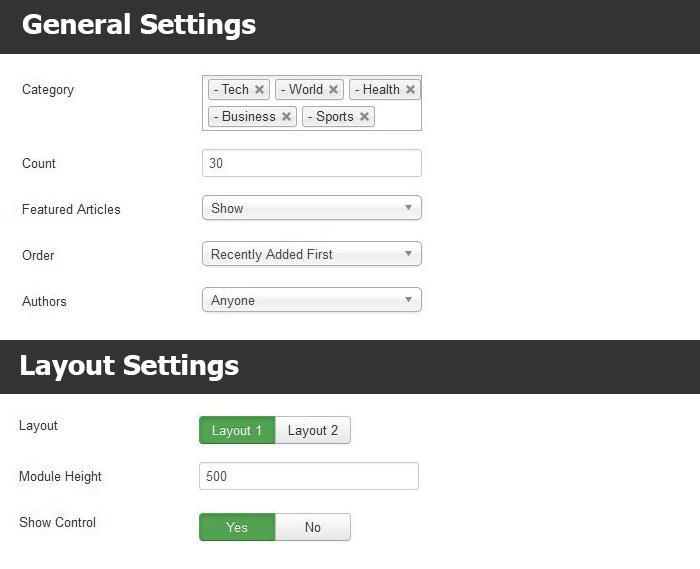
Business Module
We've used our Xpert Contents module here and have a look on the settings
Module Position: contenttop-1
Class Suffix: box1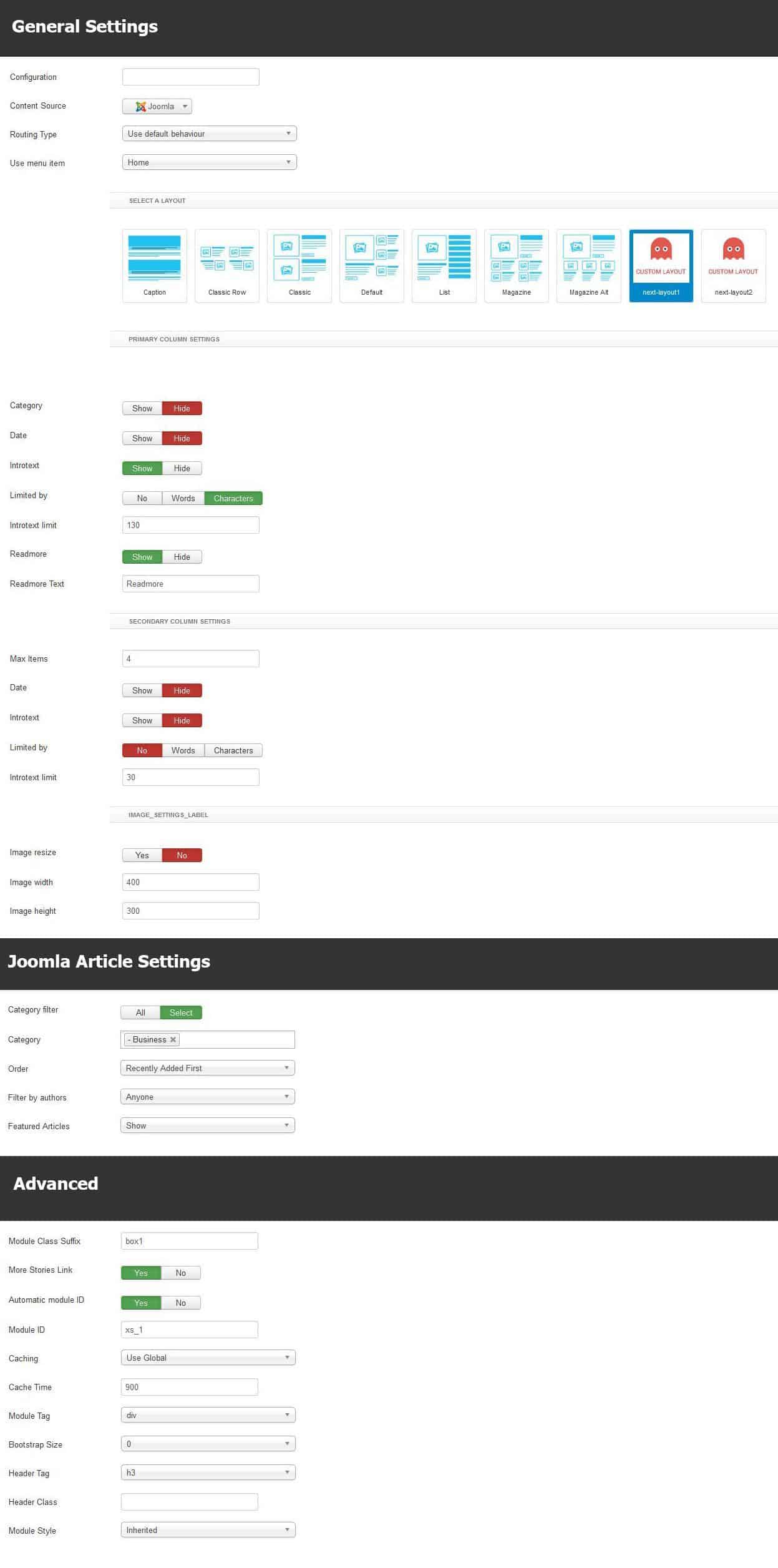
Tech News Module
This module is based on Xpert Contents, please look following settings to get a better idea.
Module Position: contenttop-1
Class Suffix: box1 nomargin-bottom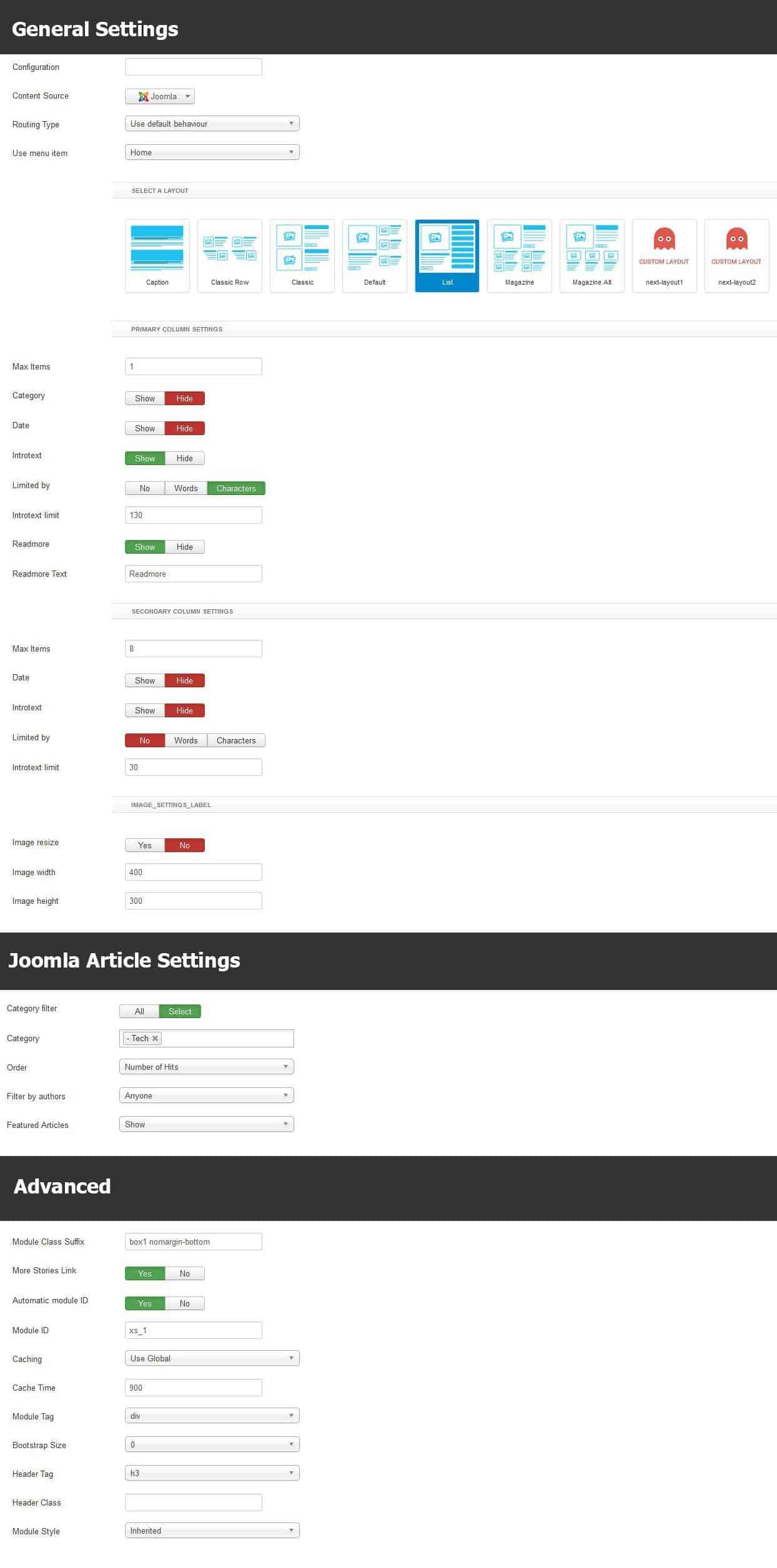
Sports Module
We've used our Xpert Contents module here, have a look on the settings.
Module Position: contentbottom-1
Class Suffix: box1 nomargin-bottom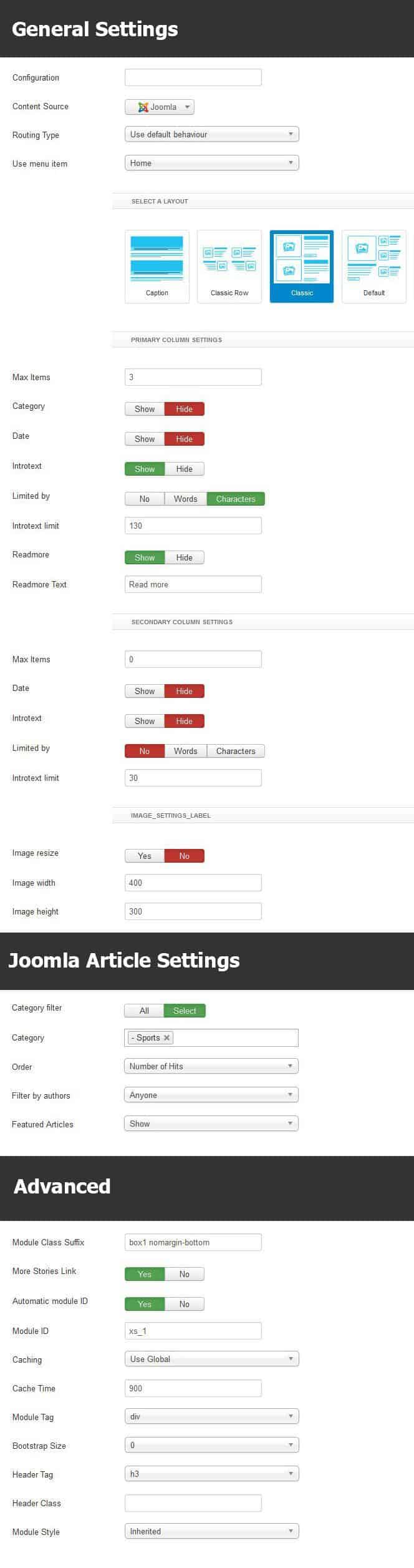
Editor's Pick Module
This module is powered by our Xpert Contents and here are the settings.
Module Position: Sidebar-b
Class Suffix: box2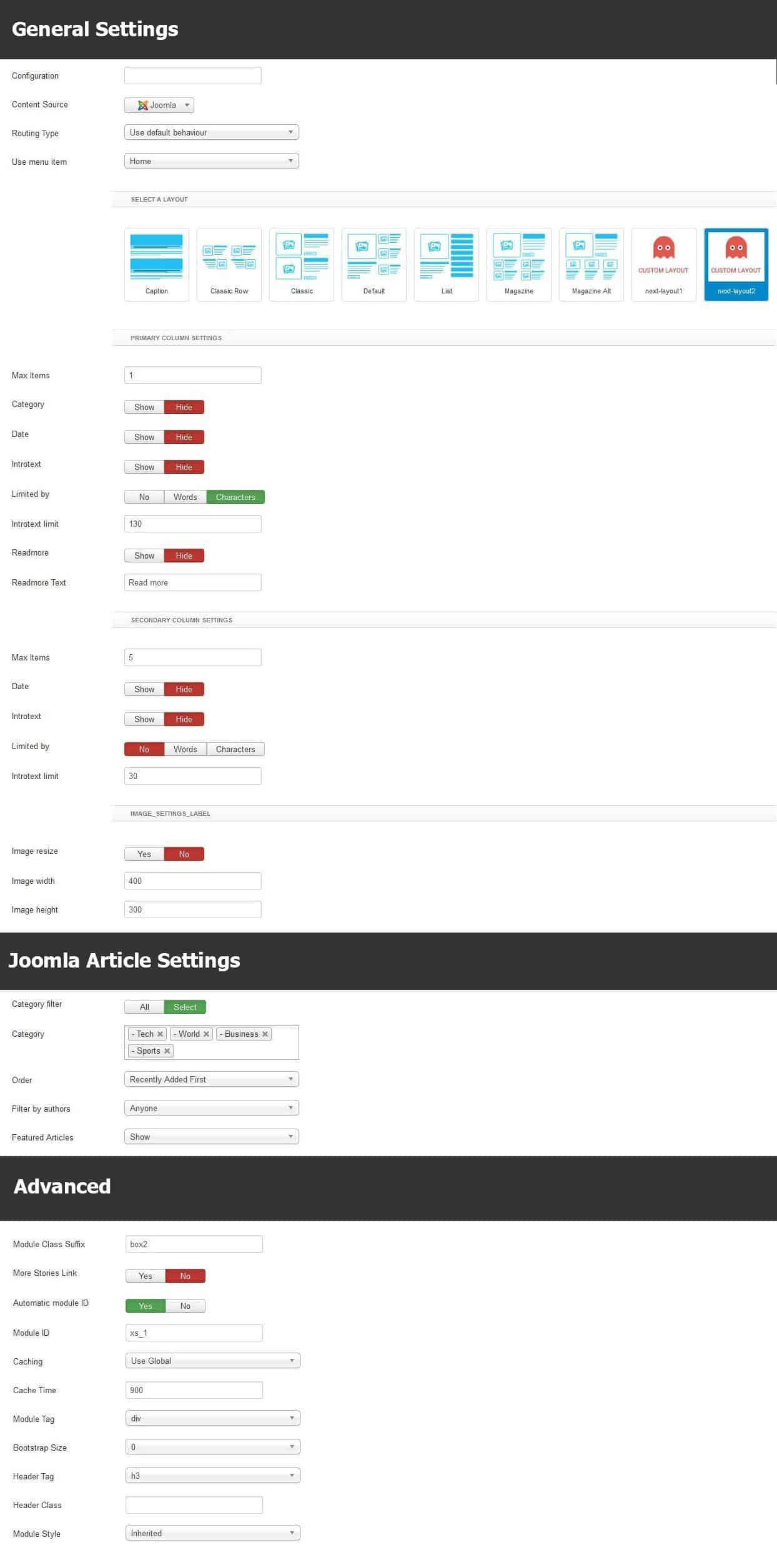
Breaking News Module
We've used our Xpert Scroller module here and let's have a look on the settings.
Module Position: Top-2
Class Suffix: newsticker
Bottom position scroller Module
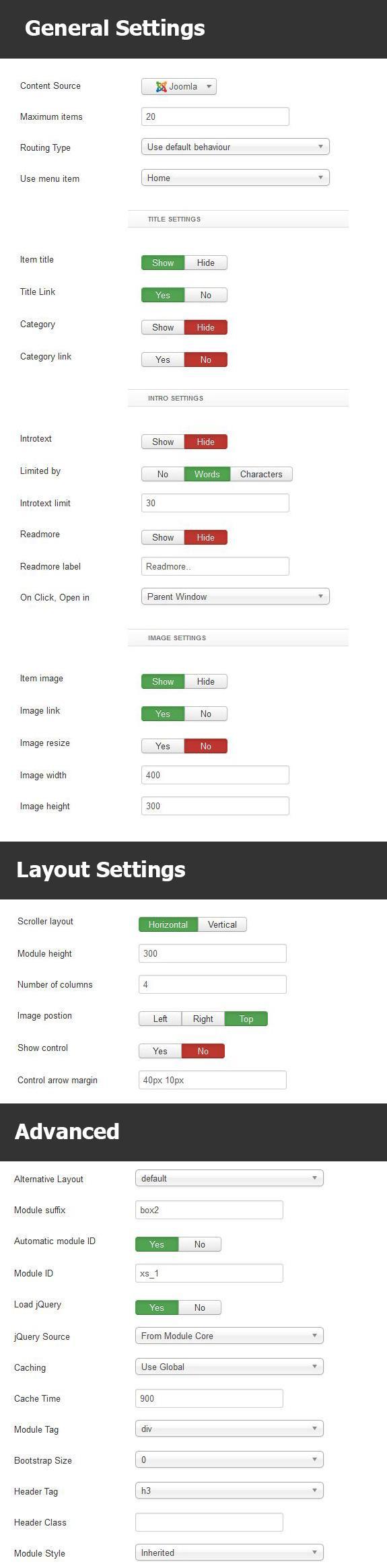
This scroller module is made by our Xpert Scroller, here are the settings at a glance.
Module Position: Bottom-1
Class Suffix: box2